Border Tracking · Volume 7
Ambient Light, Failure Modes and Keeping It Working
Why a visible-light tracker is at the mercy of the room, how each failure shows up in the raw and processed views, and the maintenance and repair a border gun needs: camera modules, IDs, firmware, USB power and the host
7.1 Why the room matters more than for infrared
An infrared gun’s camera looks through a filter that passes a narrow band around its emitters’ wavelength, and the emitters are far brighter in that band than anything in a living room except sunlight and incandescent lamps (IR Point Tracking owns the details). A border gun looks at visible light, in colour, through no filter at all, and its reference is a white frame no brighter than the display can make it. Everything else in the room that is bright and roughly white competes with it: lamps, windows, white walls, reflections in a glossy panel, the picture itself.
Sinden’s wiki says so in plain terms: “Please note the Sinden Lightgun is extremely sensitive to light. Any ambient light sources, strong lights in your room and/or white/shiny/reflective paint on your walls could cause issues.”1 A reviewer reported the same in use: “reflections on the screen can throw it off,” and “we got the best performance in a darkened room.”2 The open AndroidLightGun project gives the same advice for its phone camera.3
7.2 Reading the two views
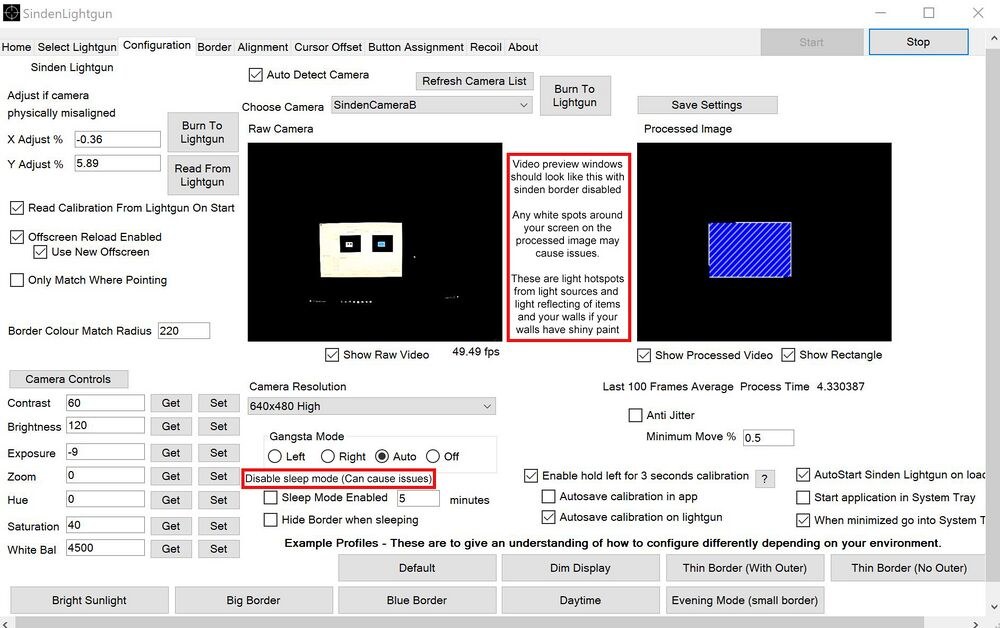
Sinden’s software shows two live views, and they are the diagnostic tool for everything in this volume. “Raw Camera is what the camera sees… The Processed Image is what the lightgun sees,” in the wiki’s words; the goal is “the Processed Image showing a clear border and blue rectangle as stable as possible.”4 An open tracker should offer the same pair (cygun has a debug window for exactly this).5
7.3 The failure modes
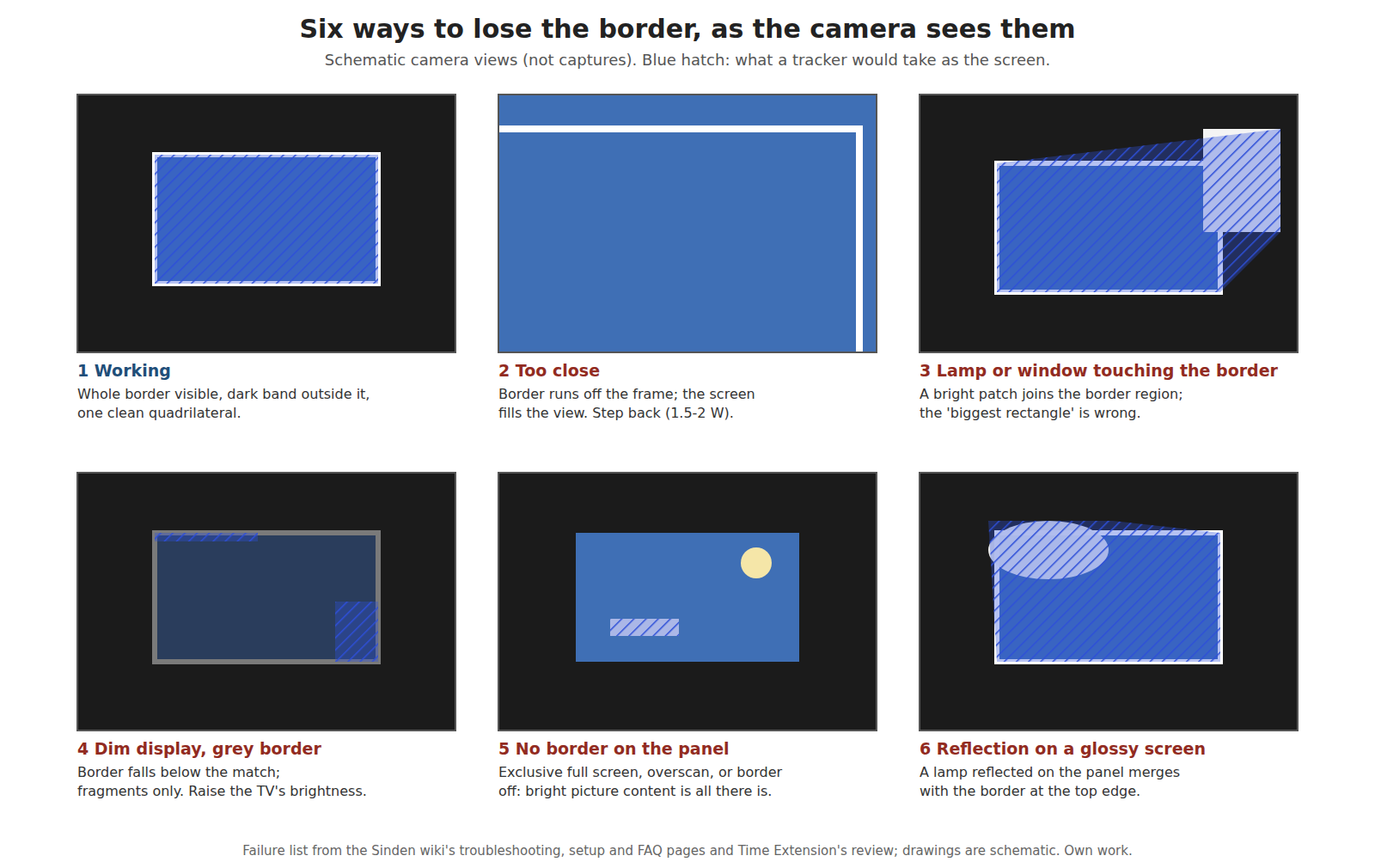
Table 1 — 7.3 The failure modes
| Failure | What happens | Evidence |
|---|---|---|
| Stray bright regions | Lamps, windows and reflections pass the colour match; if one touches the border region, the “biggest rectangle” is no longer the screen | ”Light in the room” listed as a cause of abnormal jitter; MatchOnlyWherePointing “may help with recognition, if difficult background such as bright window”67 |
| Glare on the panel | A reflection on a glossy screen sits inside or across the border | Time Extension: “reflections on the screen can throw it off”2 |
| Daylight | The room’s brightness changes through the day; settings that worked at night fail in the afternoon | ”If you have a window in the room you are using, the lightgun in the settings might change due to how bright of the room”; the software’s example profiles include “Bright Sunlight”, “Daytime” and “Evening Mode (small border)“68 |
| Lamp flicker | Mains-powered lamps and PWM backlights beat against the frame rate; the border’s brightness flickers between frames | The “strobe effect”; “You won’t be able to eliminate the strobe effect completely”4 |
| Too close | The border leaves the frame | Troubleshooting screenshot (Volume 3)6 |
| Dim or grey border | The border falls below the match | ”if the border looks grey and not white… increase your screen brightness”1 |
| No border | Exclusive full screen, overscan, or the border simply off | ”Does the gun work without a border?… No.”9 |
| Fast swings | Motion blur at the default 7.8 ms exposure smears a 4-pixel border over several pixels (Volume 4) | Inferred from the exposure; no published report |
7.4 A troubleshooting table
Assembled from the Sinden wiki’s FAQ, troubleshooting, setup and raw-video pages, in the order the wiki suggests checking.
Table 2 — 7.4 A troubleshooting table
| Symptom | Likely cause | First fix | Source |
|---|---|---|---|
| Cursor does nothing | Driver not started, or border not on | Start the software; Alt+B | Troubleshooting6 |
| Excessive jitter | Room light; standing too close; dim display; camera settings | Darken the room; step back to 1.5–2 W; TV brightness 100 %; contrast 60, brightness 120, exposure −7 to −9 | Troubleshooting6 |
| Small jitter only | Normal hand tremor | Turn in-game crosshairs off | FAQ9 |
| Tracking fine on the desktop, aim off in the game | Game needs its own calibration | Run the game’s service-menu calibration | FAQ9 |
| Border will not show in the game | Exclusive full screen | Borderless window; in MAME a non-OpenGL mode; or an in-emulator border | FAQ9 |
| Trigger maps as reload in the emulator | Gun aimed off the screen during mapping | Map with the border up and the gun on the screen | FAQ9 |
| White flashes or picture shifts in the raw view | USB port short of power | Another port, ideally USB 3.0; fewer devices on the port; reboot | Raw video page4 |
| Green blotches or glitching preview | USB issue | ”Try a different USB port” | Setup guide screenshot1 |
| Rolling black bar in the preview | Exposure beating with flicker | Change the exposure setting | Setup guide1 |
| Camera FPS below 45 | Host load, exposure too long, or USB | Check the counter; aim for 50+ | Setup guide1 |
| Unhandled exception at start | Bluetooth, camera permissions, other software | Disable Bluetooth; allow desktop apps to use the camera; close Afterburner or NZXT CAM; unplug wireless dongles | Troubleshooting6 |
| Stops after sleep | USB power saving | Disable USB selective suspend | Troubleshooting6 |
| Buttons and border fine, no tracking on a Raspberry Pi 4 | A camera-module issue the community “are aware of, but are unsure why” | Downgrade to v1.3 firmware with the v1.08 Windows software (loses recoil) | FAQ9 |
| No tracking after a camera swap | Gun looking for the old camera ID | Burn the new ID (7.6) | Camera page10 |
| No lock, cursor pinned to a corner, one axis stuck | Colour match too loose for a brighter camera module | Lower ColourMatchRange (60 worked on one unit), then enable MatchOnlyWherePointing | Sinden MiSTer README11 |
7.5 Maintenance: what drifts and what to check
A border gun has very little to wear out on the sensing side, but its working point depends on things outside it that change.
- The room. The setting that works at night may not work by day (7.3). Saving two profiles, which Sinden’s Windows software supports from version 2.08b, is the practical answer; the change log adds that a profile can be chosen on the command line (“Lightgun.exe profile1”).12
- The display. A firmware update or a picture-mode change on the television can re-enable Eco, an ambient sensor, overscan or HDR. Check the raw view after any change to the set (Volume 5).
- The alignment. Calibration and alignment are stored on the gun (“Burn to Lightgun”), so they survive a move between computers.1 The wiki recommends disabling the hold-left calibration shortcut once alignment is set, “to prevent you from accidentally recalibrating your aim while playing a game.”1
- The lens. It is the whole sensor. No cleaning procedure is published by Sinden; treat it as any small camera lens.
7.6 Repair: the camera module, its ID and the firmware
The camera is a replaceable module (Volume 1), and the wiki and Sinden’s README document the procedure. The essential fact: “The gun stores the name of the camera it expects (e.g. SindenCamA) in its own memory.” A replacement module with a different name produces “Cannot find the camera SindenCamA which the lightgun is looking for… please update the camera ID on the firmware tab.”11
The wiki’s software procedure, for the v1.08 Windows software:10
- Connect only the gun being repaired.
- On the Configuration tab, untick “Auto Detect Camera” and “Auto Start Sinden Lightgun on Load”; tick “Show Raw camera feed”; save.
- Select the new camera ID in the drop-down, “EVEN if it is already selected.”
- Start the gun and confirm it processes video.
- Click “Burn To Lightgun”. A pop-up with the camera ID means success; a blank one means repeat.
- Restore the settings changed in step 2 and save.
On the MiSTer, Sinden’s Tools/gun_serial.py --set-camera SindenCamC does the same over the gun’s serial port, “including the read-back check,” and Tools/camtest.py checks whether the camera streams at all by talking to Video4Linux directly, which separates a dead camera from a driver setting.11 A replacement module may be brighter than the original, and the colour-match tolerance may need lowering (7.4, last row).
Firmware. The Windows software updates the gun’s controller firmware and can change the gun’s identity (colour or player number) when two guns share one. The wiki’s warning is the usual one: “READ THE WARNING and DO NOT UNPLUG YOUR GUN,” and “You may need to manually reinstall the Windows driver” afterwards.6 The change log records that version 1.8 “Improved the firmware update process on windows software so the application doesn’t lock while running, should reduce chances of any bricking.”12
What needs the maker. Beyond the camera swap and firmware, the wiki points owners to customer services ([email protected]) for mechanical faults such as a broken trigger spring.9 No schematic or parts list is published, so board-level repair is not supported.
7.7 The host is part of the gun
Because the seeing is done on the computer (Volume 1), a border gun’s reliability includes the computer’s. The wiki’s recurring advice is all about the host: plug the gun into the motherboard’s rear ports, not hubs or front panels; use high-speed ports; turn off USB selective suspend; give desktop apps camera permission; set Windows scaling to 100 %; close overlay software that conflicts; and on Windows 7 and 8, install an unsigned driver with signature enforcement disabled.961 Two guns on one host double the processing load and the USB video bandwidth. None of this applies to an infrared gun that presents itself as a standard mouse, which is part of the comparison in Volume 8.
7.8 What could not be verified
- The Raspberry Pi 4 tracking fault’s cause (the community calls it a camera-module issue and does not know why).
- Whether motion blur from fast swings causes lost frames in practice.
- A published cleaning or lens-care procedure.
Sources
Footnotes
-
Sinden Lightgun wiki, “Visual Setup Guide”, text and screenshots, Internet Archive raw capture, read 2026-10-19. ↩ ↩2 ↩3 ↩4 ↩5 ↩6 ↩7 ↩8
-
Damien McFerran, “Sinden Light Gun”, review, Time Extension, 24 December 2023, https://www.timeextension.com/reviews/sinden-light-gun-old-school-arcade-blasting-on-your-modern-day-tv (read 2026-10-19). ↩ ↩2
-
mingrizaizao, “AndroidLightGun”, README, https://github.com/mingrizaizao/AndroidLightGun (read 2026-10-19). ↩
-
Sinden Lightgun wiki, “Raw Video and Processed Image”, Internet Archive raw capture, read 2026-10-19. ↩ ↩2 ↩3
-
Cynobs-repo, “cygun”, README (“show_recorded_video”), https://github.com/Cynobs-repo/cygun (read 2026-10-19). ↩
-
Sinden Lightgun wiki, “Sinden Troubleshooting”, Internet Archive raw capture, read 2026-10-19. ↩ ↩2 ↩3 ↩4 ↩5 ↩6 ↩7 ↩8 ↩9
-
Sinden Lightgun software V2.08b,
LightgunMono.exe.config(Linux PC build); https://www.sindenlightgun.com/software/SindenLightgunSoftwareReleaseV2.08b.zip, downloaded 2026-10-19. ↩ -
Sinden Lightgun wiki, “Visual Setup Guide”, Border-tab and Configuration-tab screenshots, Internet Archive raw capture, read 2026-10-19. ↩
-
Sinden Lightgun wiki, “FAQ”, Internet Archive raw capture, read 2026-10-19. ↩ ↩2 ↩3 ↩4 ↩5 ↩6 ↩7 ↩8
-
Sinden Lightgun wiki, “Changing the Sinden Camera”, Internet Archive raw capture, read 2026-10-19. ↩ ↩2
-
MrLightgun (Sinden Technology), “MiSTerSindenDriver”, README, https://github.com/MrLightgun/MiSTerSindenDriver (read 2026-10-19). ↩ ↩2 ↩3
Comments (0)