Border Tracking · Volume 5
Displays — Brightness, Lost Picture, Overscan, HDR, Dimming and Burn-In
A border tracker turns the television into part of the sensor. What that asks of the set, what the border takes from the picture, and the display features that quietly work against it
5.1 The display is part of the sensor
An infrared gun’s reference is its emitter bar, which shines the same whatever the picture does. A border gun’s reference is a few rows of pixels at the edge of the picture, so everything the display does to its pixels, it does to the reference. A display tuned to look good to people (dimming in dark rooms, dimming static elements, compressing bright highlights, cropping the edges) is tuned in several ways to look bad to the camera. This volume goes through them.
5.2 Brightness and contrast
The camera’s exposure is fixed (Volume 2), so the border’s brightness in the camera image is set by the display’s brightness. Sinden’s troubleshooting page is explicit about which side to fix. A dim display, it says, can be compensated by raising the camera’s brightness setting, but: “If you raise the value to 230 on the brightness setting. You start to see the outline of the monitor from the camera view. This IS NOT the best way to fix the brightness.” The fix it gives instead is to check that the computer’s brightness is 100 %, that the television’s brightness “should always be 100%”, and that the set is not in an Eco setting: “You might need to change it to Gaming Mode.”1
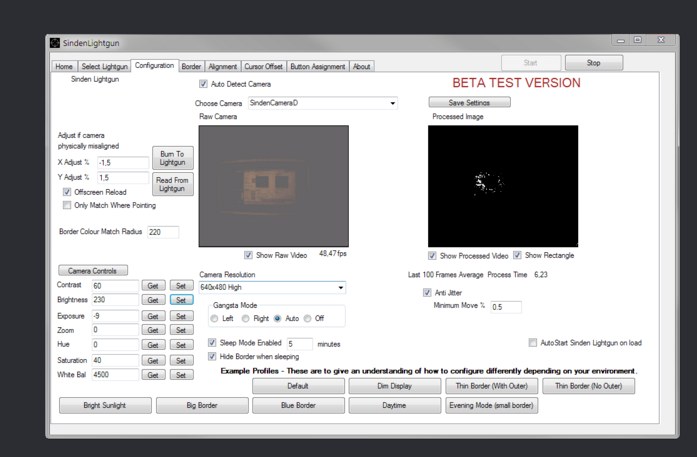
The Visual Setup Guide gives the symptom to look for: “In the raw video preview window if the border looks grey and not white and your lightgun is having issues seeing the border you need to increase your screen brightness.”2 Raising the camera’s gain or exposure makes the border brighter, but makes everything else brighter too, including the wall, the lamps and the picture, which is exactly the failure the colour-match tolerance is sensitive to (Volume 2). Raising the display’s brightness makes the border brighter against a room that stays the same.
5.3 What the border takes from the picture
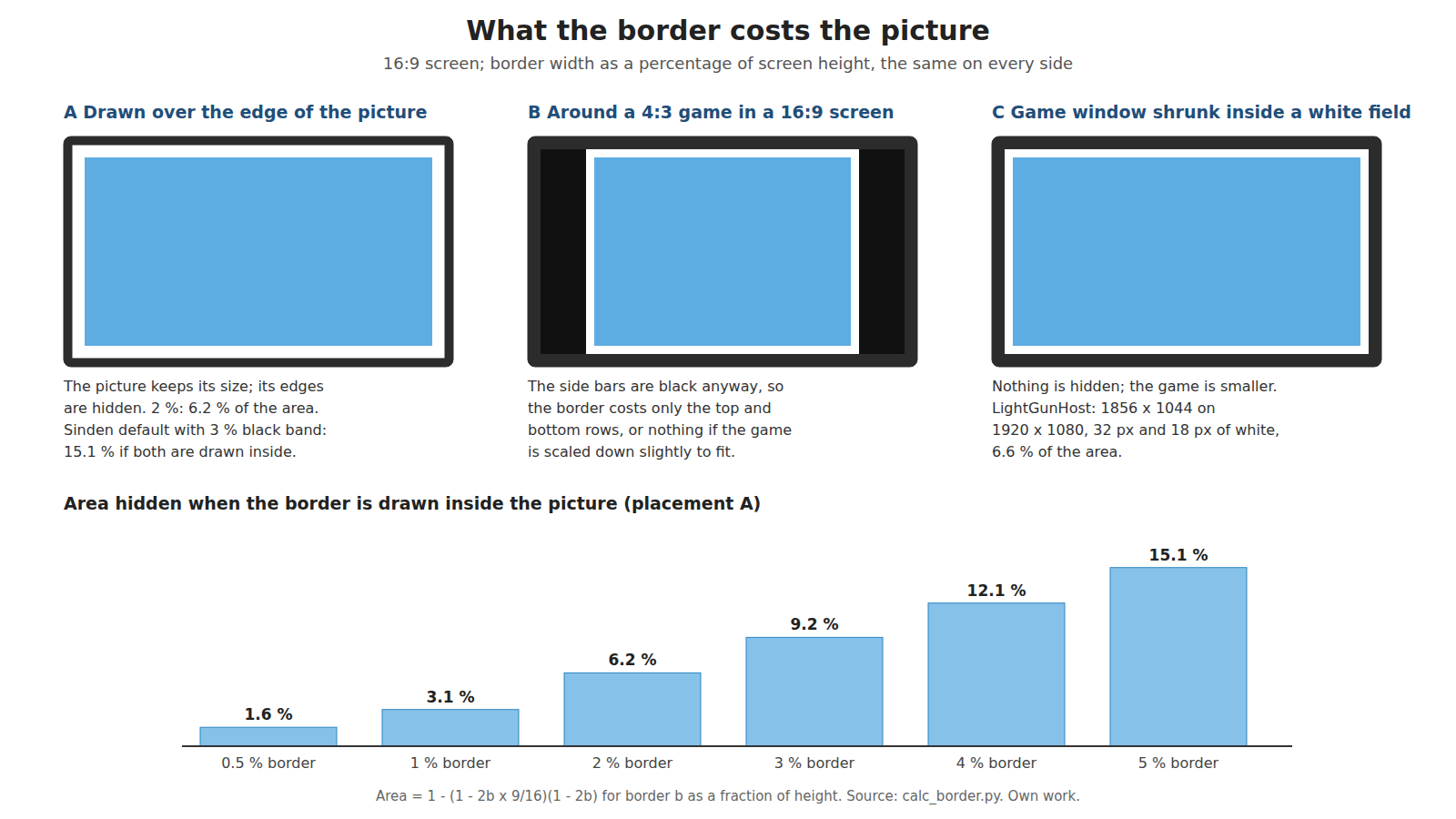
A border of b (as a fraction of the screen height) on all four sides of a 16:9 picture hides 1 − (1 − 2b × 9/16)(1 − 2b) of it:
Table 1 — A border of b (as a fraction of the screen height) on all four sides of a 16:9 picture hides 1 − (1 − 2b × 9/16)(1 − 2b) of it
| Border | Hidden area | At 1080 lines |
|---|---|---|
| 0.5 % | 1.6 % | 5 px |
| 1 % | 3.1 % | 11 px |
| 2 % (Sinden default) | 6.2 % | 22 px |
| 4 % | 12.1 % | 43 px |
| 2 % white plus 3 % black outer band | 15.1 % | 54 px |
The last row is what Sinden’s default border with its outer band costs when both are drawn over a full-screen game. That is a real loss in games that put score, ammunition or reload prompts at the edge. There are three ways round it.
- 4:3 games on a 16:9 screen have black bars at the sides already. Drawing the border around the 4:3 area costs only the top and bottom rows, and nothing if the game is scaled very slightly down. This is why Sinden’s MAME and emulator bezel packs exist: “These Bezels allow you to play 4:3 games on a 16:9 screen and put some nice artwork where the black bars would be; They also include the border built-in.”3
- Shrinking the game window inside a white field hides nothing: LightGunHost, an open helper for a phone-based border gun, puts a 1920 × 1080 game into a 1856 × 1044 window, which costs 6.6 % of the area as border but no part of the game.4 Sinden’s Windows software has a “Manipulate Game Window To Fit In Border” option for the same purpose.5
- A narrower border where the room allows it (Volume 3).
5.4 Overscan, bezels and picture size
Many televisions crop the edge of the input, a habit inherited from CRTs; on such a set the border is simply cut off. The wiki’s Raspberry Pi FAQ diagnoses the symptom (“I can see bezels, but no border”) as the television “cropping out the edges of the picture”, and points to the set’s own overscan setting, which “some Samsung TV’s” call “Screen Fit”, or to the Pi’s overscan_left, _right, _top and _bottom settings, starting at 16 and adjusting until “the image fit[s] neatly inside the frame of your set without cropping out any of it.”6 The same applies to any source: the picture mode that shows every pixel (variously called Just Scan, Screen Fit, 1:1 or Full Pixel) is the one to use.
The bezel matters too. A border tracker relies on a dark gap outside the white border (Volume 2). A wide black bezel supplies it; a thin or silver bezel, a bright wall, or a back-lit “ambient light” strip behind the set takes it away, and Sinden’s outer black border is then needed.5
5.5 Eco modes, ambient sensors and automatic dimming
The Visual Setup Guide: “If you are using a TV please turn off ECO mode if it is enabled. Turn any automatic ambient light sensors and automatic backlight settings off. This will cause issues if they are enabled.”2 The reasons are mechanical. An ambient-light sensor dims the set when the room darkens, which is exactly when a border gun is happiest; a dynamic backlight dims the whole panel during dark scenes, so the border’s brightness follows the game’s average picture level from one moment to the next. A tracker set up in a bright menu can then lose the border in a dark level.
A related behaviour is commonly built into OLED and local-dimming sets, though no maker’s description of it was read for this dive: automatic brightness limiting, which reduces the light output of the whole panel when a large area is bright, to protect the panel and its power supply. A border tracker sees its effect in reverse: in a bright, sunlit level, the border is dimmer than in a night level. No published measurement of this on a border gun was found; it belongs on the bench list (5.11).
5.6 HDR
In HDR mode, the desktop and any SDR content, including an overlay border drawn by Sinden’s software or by an emulator, are mapped into the HDR signal at a chosen brightness. Microsoft’s documentation describes the Windows control: “On an external HDR display, this setting will change the brightness of SDR content relative to HDR content.”7 The border is then only as bright as that slider makes it, typically well below the panel’s peak, and how the display renders that level “will vary by make and model,” as the same page says. The safe choice for a border gun is to play in SDR, or, if HDR is wanted, to raise the SDR content brightness and check the raw camera view.
5.7 OLED: logo dimming, pixel shift and retention
LG’s own reliability page for its OLED televisions describes three features, each of which bears on a border that stays on the screen for the whole of a play session.8
- Image retention. LG says it “may result when consumers use the display out of normal viewing conditions,” defined as “when a static image is displayed for an extended period,” and lists “Fixed game menus, icons” and the black bars of 4:3 and 21:9 films among the images to avoid. A bright white frame around the edge of the picture, for hours at a time, is a static image of exactly that kind. Showing the border only while a light-gun game runs, which the hotkeys in Sinden’s software and the per-emulator border settings allow (Volume 6), is the obvious precaution.
- Logo Luminance Adjustment. “This technology detects on-screen logos and reduces the luminance in the affected areas.” A static, bright, high-contrast frame is what a logo detector is built to find. If the set dims the border during play, the border gun loses brightness exactly where it needs it. This is an inference from LG’s description, not a reported observation; it should be tested by watching the raw camera view after twenty minutes of play with the feature on and off.
- Screen Shift. “This technology reduces the potential of retention when the screen image is fixed for a long time,” by moving the picture a few pixels. A shifted picture moves the border, and if overscan is already tight, can push one edge partly off the panel. The aim stays correct, because the border and the picture move together; the risk is to the border’s visibility at the edge.
LG adds that the Pixel Refresher runs automatically after more than four hours of cumulative viewing, at power-off. Other makers’ OLED sets were not checked for this dive. A long play session with a static border is the use case these features exist for, and the case for keeping the border to light-gun games only.
5.8 Backlight flicker and the camera
Many LCD backlights are dimmed by pulse-width modulation, and room lamps flicker at twice the mains frequency. A camera with a short exposure samples that flicker. The wiki’s page on the raw and processed views calls the result the strobe effect: lamps “are turning on and off, the flickering on video becomes more pronounced and obvious because the camera’s recording frames per second is unaligned with the frequency of electricity,” and for LCDs “Much of this has to do with the pulse width modulation used to regulate the brightness of many LED-backlit displays.” Its remedy is to raise the display’s brightness and the camera’s exposure, and then to tighten the “Border Colour Match Radius”; and it is honest about the limit: “You won’t be able to eliminate the strobe effect completely.”9
The engineering reading is straightforward. Raising a PWM-dimmed backlight to full brightness usually raises its duty cycle towards 100 %, which removes the flicker at its source; a longer exposure integrates over more PWM cycles. Both are consistent with the wiki’s advice. A rolling black bar in the preview, which the Visual Setup Guide tells owners to cure by changing the exposure, is the same beat seen across the rows of a rolling-shutter sensor.2
5.9 Projectors
The Linux configuration’s comment groups projectors with dim televisions: “if your tv is a bit dim or a projector, then increase exposure/brightness/contrast.”10 A projected image is dimmer than a direct-view panel and sits on a screen that reflects room light, so the contrast between border and surround is lower. Projectors also work the geometry hard: a 100 in image needs the player more than 3 m away for Sinden’s 1.5-width rule (Volume 3). Keystone correction in the projector does not upset the tracker, because the border is drawn in the signal and corrected with the picture; but the corrected image is a little smaller and the border with it. A dark room is the main remedy.
5.10 A display checklist
Table 2 — 5.10 A display checklist
| Setting | Why | Source |
|---|---|---|
| Brightness 100 %, Eco off, game mode on | Border brightness; less processing delay | Sinden troubleshooting1 |
| Ambient-light sensor and dynamic backlight off | Border brightness must not follow the room or the scene | Visual Setup Guide2 |
| Overscan off (“Just Scan”, “Screen Fit”, 1:1) | The border must be on the panel | Barebones FAQ6 |
| SDR, or HDR with SDR content brightness raised | The overlay border is SDR content | Microsoft7 |
| OLED: border only during light-gun play; check logo dimming | Retention and border dimming | LG8 |
| Black outer band if the bezel is thin or bright | Edge contrast | Sinden border tab5 |
| Windows display scaling 100 % | “Having a Windows Scaling greater than 100% can affect the aim in some games” | Visual Setup Guide2 |
5.11 What could not be verified
- Whether OLED logo dimming actually dims a Sinden border, and after how long.
- The size of brightness-limiter effects on border brightness between bright and dark game scenes.
- Whether Screen Shift has ever been reported to push a border off a panel.
- How each make’s HDR mode renders SDR white, and at what level.
Sources
Footnotes
-
Sinden Lightgun wiki, “Sinden Troubleshooting”, text and screenshots, Internet Archive raw capture, read 2026-10-19. ↩ ↩2
-
Sinden Lightgun wiki, “Visual Setup Guide”, Internet Archive raw capture, read 2026-10-19. ↩ ↩2 ↩3 ↩4 ↩5
-
Sinden Lightgun wiki, “Sinden Bezel Packs”, Internet Archive raw capture, read 2026-10-19. ↩
-
mingrizaizao, “LightGunHost”, README, https://github.com/mingrizaizao/LightGunHost (MIT; read 2026-10-19). ↩
-
Sinden Lightgun wiki, “Visual Setup Guide”, Border-tab screenshot, Internet Archive raw capture, read 2026-10-19. ↩ ↩2 ↩3
-
Sinden Lightgun wiki, “Barebones FAQ”, Internet Archive raw capture, read 2026-10-19. ↩ ↩2
-
Microsoft Support, “HDR settings in Windows”, https://support.microsoft.com/en-us/windows/hdr-settings-in-windows-2d767185-38ec-7fdc-6f97-bbc6c5ef24e6 (read 2026-10-19). ↩ ↩2
-
LG Electronics Hong Kong, “OLED reliability”, https://www.lg.com/hk_en/tv/oled-tv/oled-reliability/ (read 2026-10-19). ↩ ↩2
-
Sinden Lightgun wiki, “Raw Video and Processed Image”, Internet Archive raw capture, read 2026-10-19. ↩
-
Sinden Lightgun software V2.08b,
LightgunMono.exe.config(Linux PC build); https://www.sindenlightgun.com/software/SindenLightgunSoftwareReleaseV2.08b.zip, downloaded 2026-10-19. ↩
Comments (0)