Border Tracking · Volume 3
Geometry — Border Width, Screen Size and Distance, Worked
Why the ratio of distance to screen width matters more than either, how many camera pixels a 2 % border really is, and what one camera pixel is worth on the screen
3.1 What Sinden recommends
Two numbers come from Sinden’s side, and every other number in this volume is derived from them. The wiki’s FAQ: “The recommended distance is between 1.5 and 2 times the width of your screen.” The Windows software’s default border: 2 % of the screen height, white, with a 3 % black band outside it; its border tab is labelled “Percentage Width (of height)” and says “Default is 2.”123 The troubleshooting page suggests starting at 4 % and 4 % in a difficult room, then “change … border to 2 - 2; if this works, then you can keep lowering the border till it stops working.”4
A reviewer for Time Extension reported that “Sinden recommends 1.5 meters, but we found that, when using smaller screens, you can get closer than that.”5 The wiki’s rule in screen widths is the more useful form, and this volume shows why.
3.2 The near limit: the camera must see the border
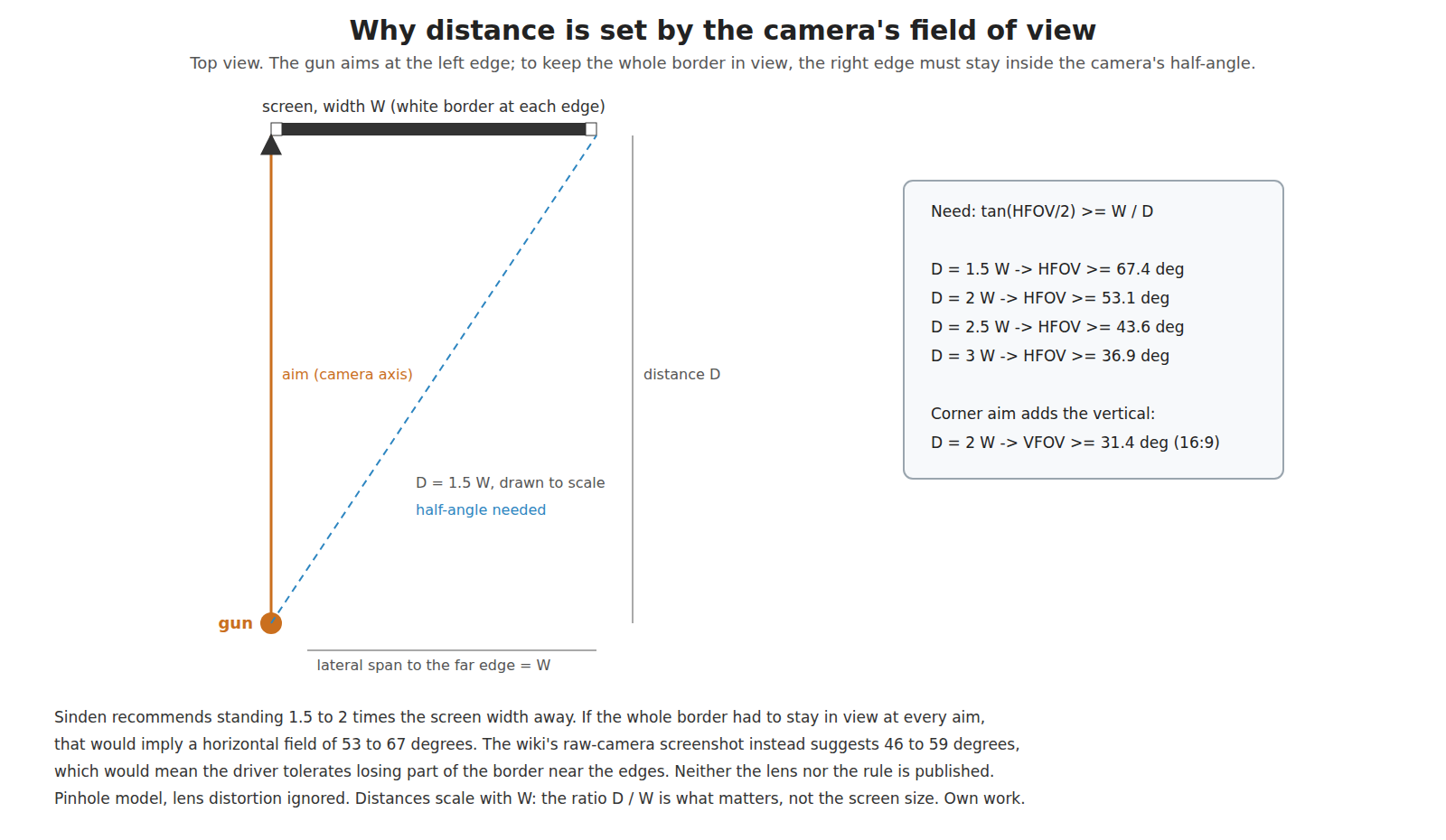
A border tracker needs to see enough of the border to locate all four corners. Aimed at the centre of the screen, the camera must see half a screen width either side. Aimed at an edge, the far edge is a whole screen width away from the aim line. For a pinhole camera, keeping the whole border in view at every aim needs a horizontal field of view whose half-angle has a tangent of at least W/D:
Table 1 — A border tracker needs to see enough of the border to locate all four corners. Aimed at the centre of the screen, the camera must see half a screen width either side. Aimed at an edge, the far edge is a whole screen width away from the aim line. For a pinhole camera, keeping the whole border in view at every aim needs a horizontal field of view whose half-angle has a tangent of at least W/D
| Distance | Horizontal field needed (edge aim) | Vertical field needed (corner aim, 16:9) |
|---|---|---|
| 1.5 W | 67.4° | 41.1° |
| 2 W | 53.1° | 31.4° |
| 2.5 W | 43.6° | 25.4° |
| 3 W | 36.9° | 21.2° |
Sinden does not publish the lens. One screenshot gives an indirect estimate. In the wiki’s setup guide, with the gun aimed near the centre of a monitor, the screen fills about 59 % of the raw camera image’s width (Volume 1). If that picture was taken at the recommended 1.5 to 2 screen widths, the camera’s horizontal field is about 46 to 59°. That is narrower than the 53 to 67° that full visibility at the edges would need, which suggests the driver copes with losing part of the border when the gun aims near an edge, or that players rarely aim at the extreme edge from the near end of the range. Neither the lens nor the rule is published, and both estimates rest on an assumed distance; the measurement is cheap and is listed in 3.8.
When the camera is too close, the border leaves the frame and the driver loses it. The wiki illustrates the result.
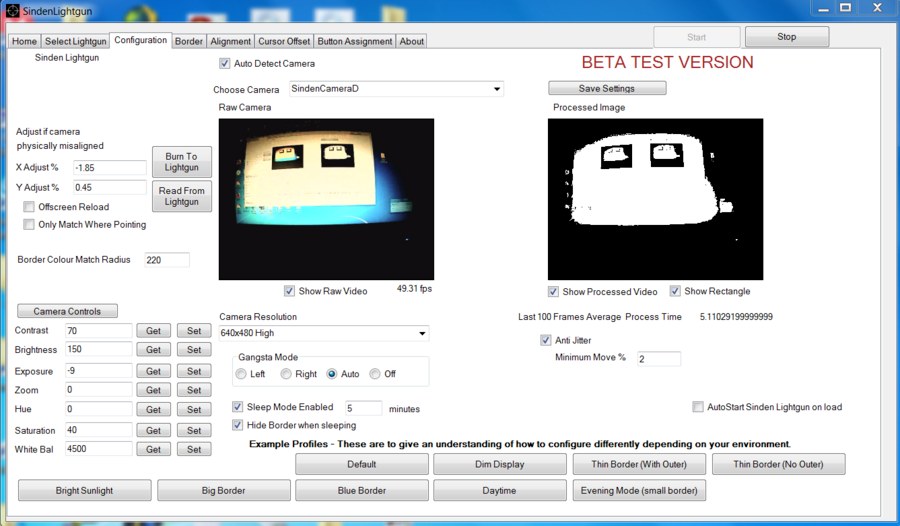
The same limit governs the off-screen reload. To decide that the gun points off the screen, rather than that the border has simply been lost, the driver still needs to see enough of the border to place the aim outside it. Aiming a quarter of a screen width past an edge pushes the far edge 1.25 W off axis; at 2 W that needs a 64° field for full visibility. The infrared equivalent of this argument, with the emitters in place of the border, is in IR Point Tracking, Volume 4.
3.3 The far limit: the border must be wide enough in pixels
As the player steps back, the screen shrinks in the camera image and the border with it. The number of camera pixels across the border is:
border pixels = (border % of height) × (screen height in camera pixels), and the screen’s width in camera pixels is 320 / ((D/W) × tan(HFOV/2)) for a 640-pixel-wide camera.
Two things follow directly. First, for a given distance in screen widths, the answer does not depend on the size of the screen: a 32 in monitor at 1.5 m and an 85 in television at 2.8 m look the same to the camera. Second, halving the camera’s resolution halves every figure, which is what happens at 320 × 240 on a weak host.
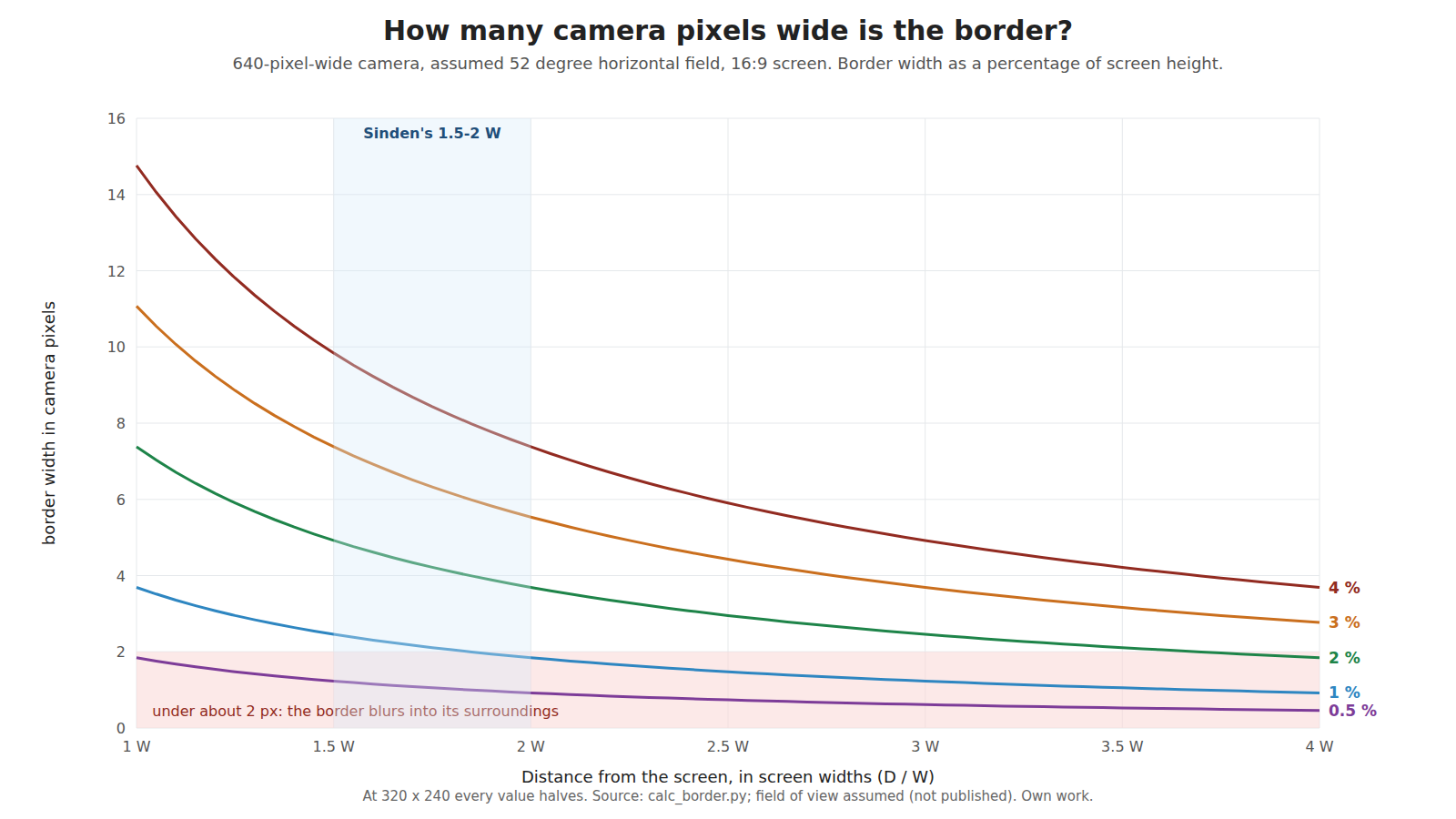
Table 2 — 3.3 The far limit: the border must be wide enough in pixels
| Distance | Screen width in camera | 0.5 % | 1 % | 2 % (default) | 3 % | 4 % |
|---|---|---|---|---|---|---|
| 1 W | 656 px (overfills a 640 frame) | 1.8 | 3.7 | 7.4 | 11.1 | 14.8 |
| 1.5 W | 437 px | 1.2 | 2.5 | 4.9 | 7.4 | 9.8 |
| 2 W | 328 px | 0.9 | 1.8 | 3.7 | 5.5 | 7.4 |
| 3 W | 219 px | 0.6 | 1.2 | 2.5 | 3.7 | 4.9 |
| 4 W | 164 px | 0.5 | 0.9 | 1.8 | 2.8 | 3.7 |
(Border widths in camera pixels, 640 × 480 camera, 52° assumed; calc_border.py also gives the table for 46° and 59°.)
How many pixels are enough is a property of the camera’s blur and the colour-match tolerance, and no figure for it is published. Two pixels is used here as a working floor: a border narrower than that, blurred by the lens and by hand movement during the exposure, spreads its light across neighbouring pixels and falls below a tight threshold, or merges with its surroundings under a loose one. On that basis the default 2 % border holds out to about 3.5 W at 640 × 480, and to about 1.8 W at 320 × 240. A 1 % border works only inside about 1.8 W at full resolution. Sinden’s advice to start wide and narrow the border “till it stops working” is the empirical version of the same curve.
3.4 Distance in metres, for real screens
Table 3 — 3.4 Distance in metres, for real screens
| Screen (16:9) | Width | 1.5 W | 2 W |
|---|---|---|---|
| 32 in monitor | 0.71 m | 1.06 m | 1.42 m |
| 43 in | 0.95 m | 1.43 m | 1.90 m |
| 55 in | 1.22 m | 1.83 m | 2.44 m |
| 65 in | 1.44 m | 2.16 m | 2.88 m |
| 77 in | 1.71 m | 2.56 m | 3.41 m |
| 85 in | 1.88 m | 2.82 m | 3.76 m |
| 100 in projection | 2.21 m | 3.32 m | 4.43 m |
The large-screen end is where border tracking becomes awkward in an ordinary room: a 100 in projector screen wants the player more than 3 m back. The infrared equivalent sets its own minimum distance by the camera’s field of view against the emitter spacing (IR Point Tracking, Volume 4), and with the wide PixArt lens chosen for the kit it allows much closer play.
3.5 What one camera pixel is worth on the screen
At the aim point, one camera pixel covers W divided by the screen’s width in camera pixels:
Table 4 — At the aim point, one camera pixel covers W divided by the screen's width in camera pixels
| Screen | At 1.5 W, 640 wide | At 2 W, 640 wide | At 2 W, 320 wide |
|---|---|---|---|
| 32 in | 1.6 mm | 2.2 mm | 4.3 mm |
| 55 in | 2.8 mm | 3.7 mm | 7.4 mm |
| 65 in | 3.3 mm | 4.4 mm | 8.8 mm |
| 85 in | 4.3 mm | 5.7 mm | 11.5 mm |
(52° assumed.) That is the raw resolution before any sub-pixel fitting. A corner found by fitting lines to several hundred edge pixels can be located to a fraction of a pixel, so the real limit is noise and tremor, not pixel pitch. For comparison, the wide PixArt infrared camera the project has chosen for its kit resolves about 30 mm per pixel on a 55 in screen at 1.5 m, according to the infrared dive’s own table (IR Point Tracking, Volume 4), though it too interpolates far below a pixel. A border tracker sees the screen with many more pixels; whether that turns into steadier aim depends on everything in Volume 7.
The only measured steadiness figure found is Sinden’s own from the MiSTer, on one unit at reduced resolution: a standard deviation of 2 to 4 % of the screen when held still after tuning, 5.5 to 6.7 % before (Volume 2). On a 55 in screen, 2 % of the width is 24 mm. The wiki’s own description of normal behaviour is that a “small amount of jitter around the cursor is normal, it happens because of your natural arm movements.”1
3.6 The border’s own geometry: 4:3, 16:9 and the outer band
- Percent of height on every side. The Windows default is set as a percentage of the screen’s height and is the same number of display pixels on the sides as on the top and bottom; the libretro shader does the same (“aspect-corrected width”).6 At 1080 lines, 2 % is 21.6 display pixels.
- 4:3 inside 16:9. Many light-gun games are 4:3. The Windows software can “Cycle a 4:3 border” and “Draw border only around 4:3 area”; Alt+B steps between the 16:9 border, the 4:3 border and none.37 Drawing the border around the 4:3 picture costs nothing at the sides, where the pillarbox bars are black anyway, and the border then encloses only the game, so the mapping covers exactly the area the game reads. Sinden’s MAME layout files put the 4:3 game at 1152 × 864 inside a 1600 × 900 view, with the white border image around it.8
- The outer band and the bezel. The black band outside the white one gives the edge contrast the colour match needs (Volume 2). A television’s black bezel does the same job; a bezel-less or silver-framed set, a white wall close behind the screen, or a bright cabinet surround removes it. The border tab’s note that the outer border is needed “if your screen bezel is extremely thin” is that case.3
3.7 Three rooms, worked
Table 5 — 3.7 Three rooms, worked
| Room | Screen width | Distance | D/W | Default 2 % border | Verdict |
|---|---|---|---|---|---|
| Desk, 32 in monitor | 0.71 m | 0.8 m | 1.1 | about 6.6 px at 640, 3.3 at 320 | Border wide enough, but at 1.1 W the camera must see 0.71 m to the side from 0.8 m: about 83° of field at an edge. Too close for the edges unless the lens is very wide |
| Living room, 55 in | 1.22 m | 2.4 m | 2.0 | about 3.7 px at 640, 1.8 at 320 | Inside Sinden’s range; fine at full resolution, marginal on a weak host |
| Projector, 100 in | 2.21 m | 3.0 m | 1.36 | about 5.4 px | Border wide enough; the player stands nearer than 1.5 W, so edge aims may lose the far border; and a projector’s dim picture is its own problem (Volume 5) |
(52° field assumed throughout; pixel figures from calc_border.py.)
3.8 What could not be verified
- The camera’s field of view. It can be measured with any Sinden gun in ten minutes: point it at a wall, mark where the edges of the raw view fall, and measure the distance; or view a ruler at a known distance. The same measurement is owed for any webcam used to try the method.
- Whether the driver needs all four sides in view, or tolerates a partly visible border near the edges.
- The minimum border width in camera pixels that the driver needs. Two pixels is a working assumption.
- Whether the 4.9 sight offset (Volume 2) is in inches, which the neighbouring screen-size fields suggest.
Sources
Footnotes
-
Sinden Lightgun wiki, “FAQ”, Internet Archive raw capture, read 2026-10-19. ↩ ↩2
-
Sinden Lightgun software V2.08b,
SindenLightgunWindowsV2.08/SindenLightgun/Lightgun.exe.config(txtPrimaryBorderWidth2,txtSecondaryBorderWidth3, colours 255,255,255 and 0,0,0); https://www.sindenlightgun.com/software/SindenLightgunSoftwareReleaseV2.08b.zip, downloaded 2026-10-19. ↩ -
Sinden Lightgun wiki, “Visual Setup Guide”, Border-tab screenshot, Internet Archive raw capture, read 2026-10-19. ↩ ↩2 ↩3
-
Sinden Lightgun wiki, “Sinden Troubleshooting”, Internet Archive raw capture, read 2026-10-19. ↩
-
Damien McFerran, “Sinden Light Gun”, review, Time Extension, 24 December 2023, https://www.timeextension.com/reviews/sinden-light-gun-old-school-arcade-blasting-on-your-modern-day-tv (read 2026-10-19). ↩
-
libretro, slang-shaders,
border/shaders/lightgun-border.slang(read 2026-10-19). ↩ -
Sinden Lightgun wiki, “Getting Started”, Internet Archive raw capture, read 2026-10-19. ↩
-
Sinden Lightgun software V2.08b,
Tools/Borders/MameBorderTemplate/alien3/alien3.lay. ↩
Comments (0)