MP7 Light Gun: Printed Build · Volume 4
Into Fusion 360 — Turning a Bought MP7 Model into a Private Design
An intermediate Fusion user's path from a bought STEP to a private, parametric design: importing without a timeline, organising projects and components around a skeleton of datums, the direct-editing tools that work on imported solids, what to do when only a mesh exists, calibrated canvases, user parameters, versions, and keeping the derivative files in order
The volume assumes someone comfortable with sketches, extrudes, fillets and the timeline, who has not had to adopt a large model drawn elsewhere. It names Fusion’s commands as Fusion shows them. Where a behaviour comes from Autodesk’s documentation it is cited; where it is a working practice, it says so.
4.1 What Fusion gets from a STEP, and what it does not
A STEP file carries the result of someone else’s modelling: solid bodies bounded by exact faces (planes, cylinders, NURBS surfaces), their edges and vertices, and, for an assembly, the parts and their placement. It does not carry how the result was made: no sketches, no dimensions, no constraints, no features, no timeline. Autodesk’s own beginner series says it plainly: “Imported geometry often lacks parametric history, meaning it doesn’t include the sketches and constraints you’d normally use for edits.”
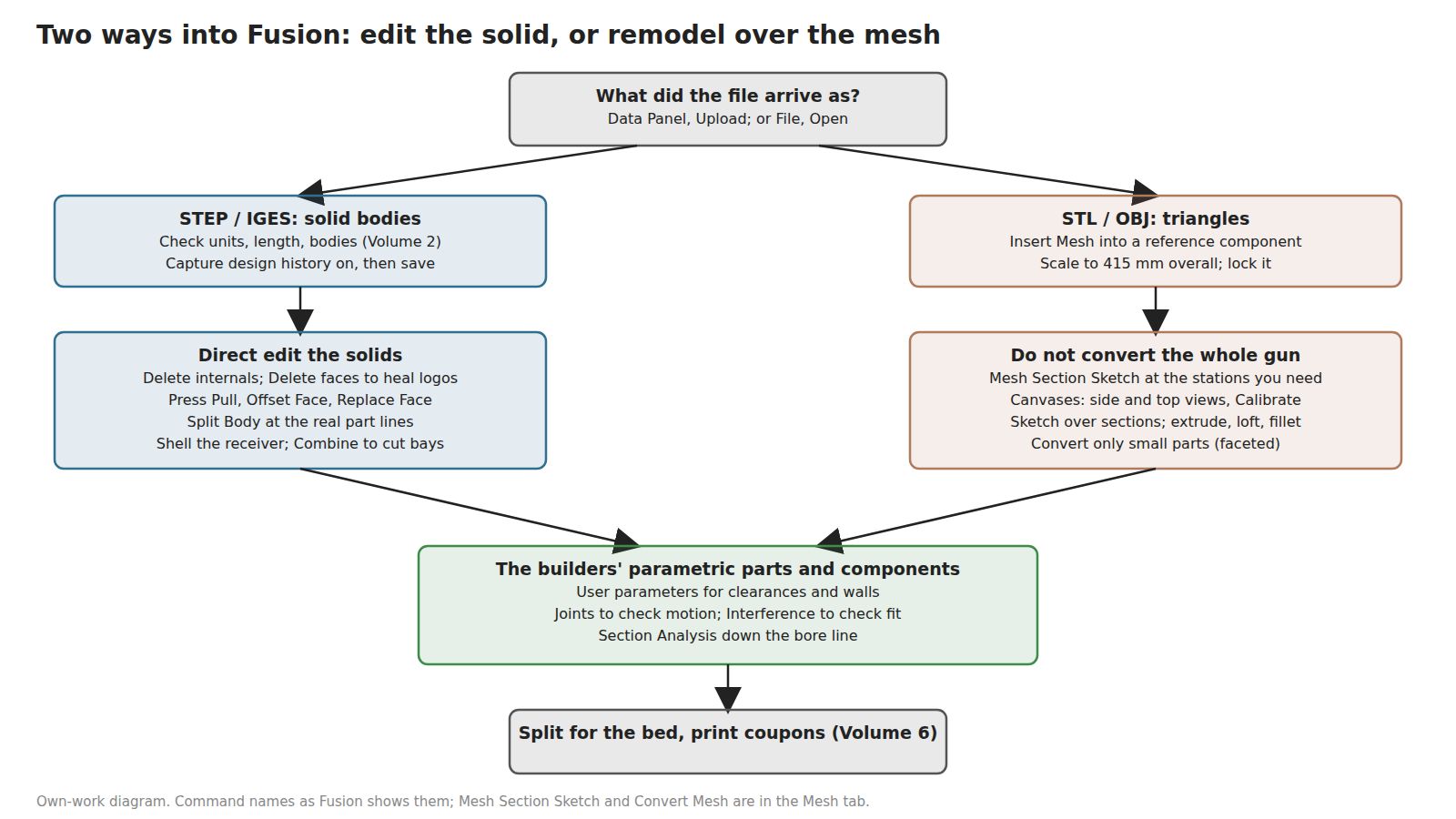
Two things follow. Every face is real and measurable, so the model can be checked, cut, shelled and joined like any solid. But changing the design means moving faces, not editing a sketch dimension. Fusion’s answer is direct editing, which in the same Autodesk article “lets you modify imported geometry without rebuilding it from scratch. You can delete unwanted features, adjust faces, or extend surfaces”. The working practice that makes a long project manageable is to direct-edit the starter only as far as needed, and to build everything new as ordinary parametric features on top (Section 4.6).
4.2 Set up before importing
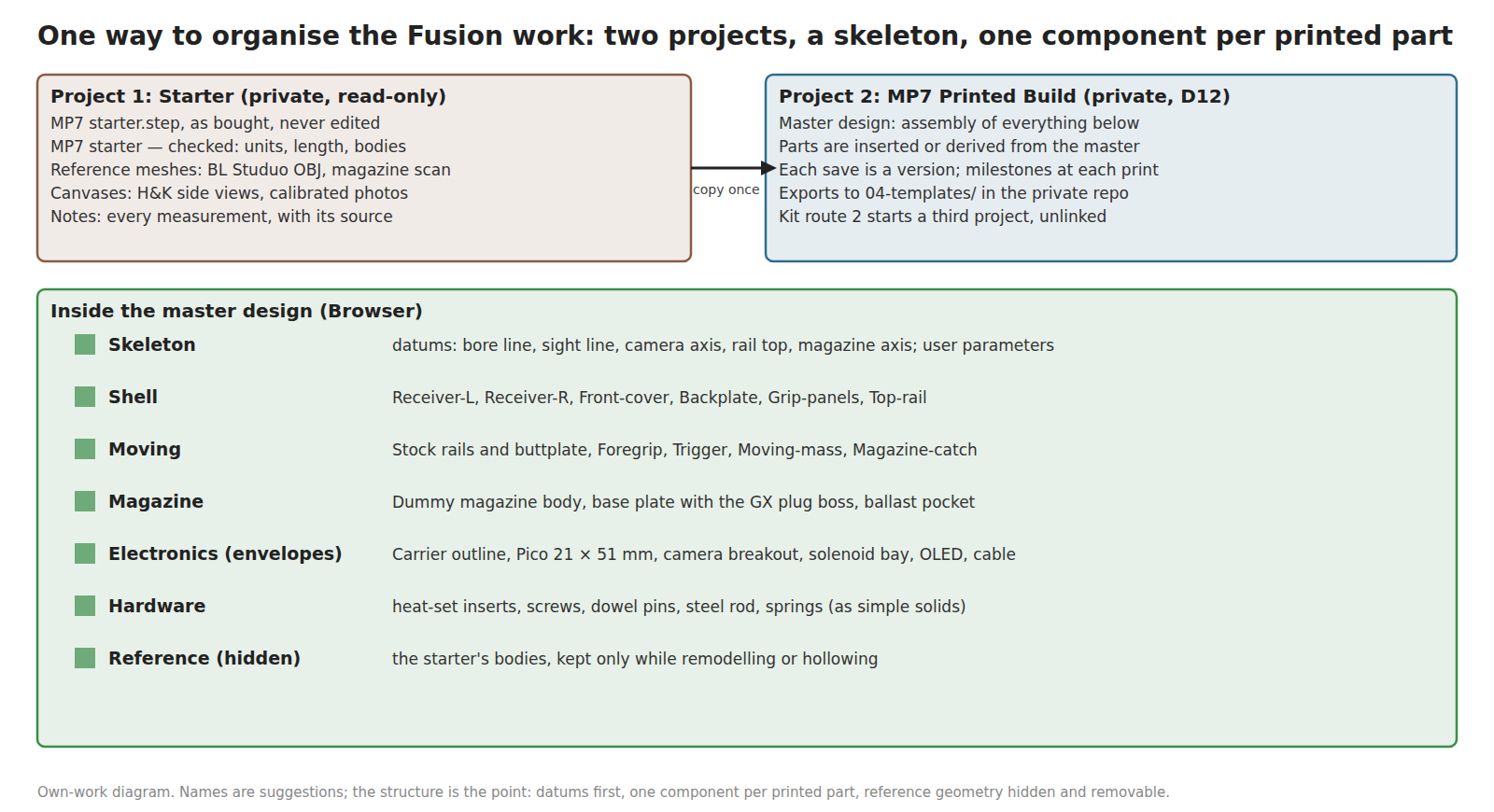
Two projects, as the figure shows. The starter file lives in its own project and is never edited there; a copy goes into the build project. This is housekeeping for the first gun and a hard rule for any kit (Volume 3, route 2): the kit project must never contain or reference the bought file.
Units. Set the build design’s units to millimetres before importing. A STEP records its own units and Fusion converts on import, but the design’s displayed units decide what every later dimension and parameter reads as.
History. Autodesk staff describe imported designs as always created as direct-modelling designs, with no timeline, and history captured only once it is switched on: right-click the root of the design in the Browser and choose Capture Design History. History then records from that moment; the imported geometry stays as base geometry with no features behind it. Switch it on straight after import, before any edit, so that everything done to the starter is in the timeline and can be rolled back.
4.3 Importing the starter
- In the Data Panel, open the starter project and click Upload; choose the STEP. Fusion translates it in the cloud and shows it as a new design when it is done. (File, Open from the computer does the same in one step.) Autodesk: “Use the Upload feature in the Data Panel to add IGES or STEP files to your project.”
- Open the translated design. Expand the Browser. An assembly arrives as components, each with its bodies; a single-part STEP arrives as bodies under the root.
- Save it under a name that says what it is: “MP7 starter, as bought, 2026-10-xx”.
- Run Volume 2’s acceptance checks (§2.8) here, and record the results in a text note in the project.
- Copy the checked design into the build project (right-click in the Data Panel, Copy), and open the copy. Everything from here on happens in the copy.
- Right-click the root, Capture Design History. Save.
4.4 The skeleton: datums before parts
The single most useful thing to build before touching the shell is a component, here called Skeleton, containing nothing but the references every other part hangs from:
Table 1 — The single most useful thing to build before touching the shell is a component, here called Skeleton, containing nothing but the references every other part hangs from
| Datum | Built from | Why |
|---|---|---|
| Bore line | An axis through the centre of the starter’s barrel | The camera’s axis in option A; the line the orange band is concentric with |
| Sight line | An axis through the rear and front sight apertures, or the reflex sight’s centre | The line the player aims along; Aiming Maths Vol 5 wants the camera within about 8 mm of it |
| Camera axis | A construction axis offset from the bore or sight line by a user parameter | One parameter moves the camera between options A and B (Volume 5) |
| Rail top plane | A plane on the top face of the top rail | Everything that mounts on the rail, and the sight-line height |
| Mid-plane | The receiver’s vertical plane of symmetry | Mirror features; the clamshell split if that option is chosen (Volume 6) |
| Magazine axis | An axis along the magazine well | The dummy magazine, the cable path, the base plate |
| Print bed boxes | Sketches of the bed outline (Volume 6) placed on the mid-plane | Show at a glance whether a part fits a printer |
When a later part is drawn, its sketches project or reference these datums rather than faces of the starter. That keeps the design alive when the starter’s faces are edited or deleted, and it is what lets a kit model (route 2) reuse the whole interior: the datums can be re-created in a clean project from H&K’s figures without carrying any of the starter’s geometry.
4.5 Components, bodies and joints
One component per printed or bought part. A component is Fusion’s unit of part identity: it has its own origin, can be moved, jointed, exported and given a material. Bodies inside one component are the working pieces of that part. The starter will not arrive organised this way. Where it arrives as one component full of bodies, select the bodies, right-click, Create Components from Bodies.
Hide, do not delete, the starter’s reference bodies at first. Keep them in a hidden “Reference” component while the new parts are drawn; delete them once nothing references them.
Joints and rigid groups. Autodesk’s guidance for imported parts is to group what should move together with Rigid Groups and to add joints where motion is wanted, using an As-Built Joint when parts are already in position. For this gun that means: the stock rails as a slider joint; the foregrip as a revolute joint with limits; the trigger as a revolute joint, the moving mass as a slider. Driving the joints shows clashes long before a print does.
Electronics as envelopes. The carrier, the Pico (21 × 51 mm on a 1 mm board, per Raspberry Pi’s figures as recorded in MP7 Donor Build Vol 2 §2.8), the camera breakout, each solenoid on the shortlist, the OLED and the GX plug are modelled as simple boxes and cylinders in an Electronics component, sized from their datasheets, so that the shell is designed around them. When the Reference Electronics carrier outline is fixed in Altium, its STEP export replaces the envelope.
4.6 Direct editing imported solids
The tools that do most of the work on imported geometry, all in the Solid tab’s Modify menu unless stated, with what each is for on this gun:
Table 2 — The tools that do most of the work on imported geometry, all in the Solid tab's Modify menu unless stated, with what each is for on this gun
| Tool | What it does | Used here for |
|---|---|---|
| Delete (select faces, press Delete) | Removes faces and lets the neighbours grow to close the gap | Removing moulded logos and text, unwanted holes, the real gun’s internal ribs and pin bosses |
| Remove | Removes a whole body from the design, recorded in the timeline | Deleting the firearm internals (bolt, barrel, fire control) |
| Press Pull | Moves a face along its normal; on a fillet edge it changes the radius | Thickening walls, deepening the magazine well, lengthening a boss |
| Offset Face | Moves faces by a distance | Adding a uniform clearance to a mating surface |
| Replace Face | Replaces faces with a chosen surface or face | Squaring up an imprecise face to a datum plane |
| Split Body | Cuts a body with a plane, face or surface | Cutting the shell at its print split lines (Volume 6) |
| Split Face | Divides a face so part of it can be moved | Making a separate face for a seam step or a lip |
| Shell | Hollows a solid to a wall thickness | Hollowing the receiver, front cover, grip and magazine |
| Combine (Join, Cut, Intersect) | Boolean between bodies | Cutting bays, keys and bosses out of the shell; joining new bosses to it |
| Move/Copy, Align | Moves bodies or components | Placing envelopes on datums |
Recipe: hollowing the receiver. Remove the internal bodies. Delete any internal faces of the receiver body that model the real gun’s interior (Delete heals them shut). The receiver is now a solid lump with the real outside. Shell it inward to the wall thickness parameter (Section 4.9), choosing the faces to leave open (usually none at this stage; the split comes later). If Shell fails, the body has slivers or gaps: find them with Section Analysis and Delete or Replace the offending faces, or shell a simplified copy and Combine.
Recipe: removing a moulded logo. Window-select the faces of the raised or sunken text, press Delete. If Fusion cannot heal it, select the surrounding face and use Replace Face onto an offset plane.
Recipe: a bay for an envelope. Make the bay as a new body in the shell’s component: Offset the envelope box by the clearance parameter, then Combine, Cut, with Keep Tools ticked, from the shell. Because the bay is a feature driven by the envelope and a parameter, swapping the solenoid on the bench is one edit.
4.7 When only a mesh exists
The owner’s starter is a STEP, but two of the references (the BL Studuo model and the magazine scan) are meshes, and the 3DModels.org file is too. Fusion offers two ways to use a mesh.
Converting it. Autodesk’s help gives three methods in Mesh, Modify, Convert Mesh: Faceted “Converts individual faces on the mesh body to individual faces on the new solid or surface body”; Prismatic “Merges groups of faces in prismatic features into singular faces”; Organic “Converts the mesh body to an organically shaped solid or surface body”, the last being “part of an extension”. Autodesk’s Fusion blog of 3 June 2026 adds that Prismatic “is available to commercial license users”, works best after Generate Face Groups, and that a direct conversion often yields “a “compute failed” error or … a random patchwork of surfaces”. For a million-triangle MP7, Faceted gives a million faces that cannot be shelled or edited sensibly. Conversion is for small, simple parts, and even then it gives faceted geometry.
Remodelling over it is the better path, and it is the one a kit route 2 model is built by:
- Insert Mesh into the Reference component. Scale it uniformly so its overall length matches the starter’s (or H&K’s 415 mm), and fix it in place.
- In the Mesh tab, Create Mesh Section Sketch: pick the mesh and a plane. Autodesk’s help: an orange section line appears where the plane cuts the mesh, adjustable by distance and angle.
- Edit that sketch and use Fit Curves To Mesh Section (Sketch, Create) to lay lines, arcs and splines along the section line.
- Repeat at the stations the shape needs (a side profile on the mid-plane, cross-sections every 20–40 mm along the receiver, a plan view), then Extrude, Loft and Fillet from the fitted sketches as normal parametric features.
The result is a solid that follows the reference’s shape with clean, editable faces, and owes nothing to the mesh but its outline.
4.8 Canvases: photographs and drawings to scale
A Canvas (Insert, Canvas) places an image on a plane. Its use here is checking the starter against photographs, and drawing details the starter lacks or got wrong (grip texture, selector pictograms’ positions, the real seam lines). Autodesk’s help for calibration: in the Browser’s Canvases folder, right-click the image, Calibrate, pick two points on it and enter the true distance between them. The API documentation explains why this step matters: the Canvas command ignores any resolution stored in the image file, and calibration is what sets the scale.
The traps, from Autodesk’s forums and plain optics:
- Calibrate each view separately, and align each to the skeleton datums.
- A photograph is a perspective view. Only a long-lens, square-on photograph is close to a true elevation, and then only near the plane of focus. A calibrated photo is good to a millimetre or two on a feature in its own plane and worse elsewhere.
- An image imported at the wrong aspect ratio stays squashed; one forum fix was re-saving it as PNG.
- Calibrate on the longest reliable dimension in the image (overall length with the stock collapsed, or the barrel’s 180 mm), never on a short feature.
H&K’s own operator’s-manual figures of the left and right sides (HK MP7 Vol 5) are near-orthographic and make good private canvases.
4.9 User parameters
Modify, Change Parameters opens the parameters table. Put every number that will be tuned on the bench there, named, with a comment, and use the names in features instead of typed values. A starting table for this gun:
Table 3 — Modify, Change Parameters opens the parameters table. Put every number that will be tuned on the bench there, named, with a comment, and use the names in features instead of typed values. A starting table for this gun
| Name | Starting value | Comment |
|---|---|---|
wall | 2.4 mm | Shell wall; six 0.4 mm lines (Volume 6) |
wall_boss | 1.6 mm | Minimum plastic round an M3 insert, CNC Kitchen’s table (Volume 6) |
hole_m3_insert | 4.0 mm | CNC Kitchen M3 insert hole (Volume 6) |
hole_m4_insert | 5.6 mm | CNC Kitchen M4 insert hole |
clr_slide | 0.3 mm | Sliding fit per side, to be set by coupon |
clr_fixed | 0.15 mm | Locating fit per side, to be set by coupon |
clr_env | 1.0 mm | Clearance round electronics envelopes |
cam_offset_z | 0 mm | Camera axis above the bore line: 0 for option A, the sight height for option B |
sol_bay_len, sol_bay_w, sol_bay_h | from the shortlist | The solenoid bay, sized to the largest candidate (Volume 5) |
split_x1, split_x2 | from Volume 6 | Positions of the transverse print splits |
The clearance values are starting guesses for a coupon to correct, not measurements (Volume 6). The point of the table is that when the coupon says 0.25 mm instead of 0.3, one edit updates every sliding fit in the gun.
4.10 Sketch hygiene
Rules that keep a model of this size editable for months, as working practice:
- Sketch on datums, not on imported faces. A face of the starter can be deleted or replaced; a skeleton plane cannot.
- Fully constrain every sketch (it turns black). An under-constrained sketch moves when something upstream changes, quietly.
- Project only what is needed, and project from the skeleton rather than from the shell.
- One idea per sketch, named. “Solenoid bay profile” is findable in a 400-feature timeline; “Sketch112” is not.
- Name features and group them in the timeline (select a run of features, right-click, Create Group): “Hollow receiver”, “Carrier bosses”, “Split for bed”.
- Keep the timeline moving forward. Roll back to edit; do not leave the marker in the middle.
4.11 Versions, milestones and exports
Every save in Fusion makes a version, and the Data Panel keeps them all. Mark a milestone at each state that was printed, so that “the receiver as printed on 2026-11-02” can be opened again exactly. At each milestone, export:
- the F3D archive of the master design (File, Export), the complete Fusion state;
- a STEP of each part, for any other tool;
- the print files (3MF) exactly as sliced.
These go into this dive’s 04-templates/ in the private repository, named by part and date, under the Standard’s repository and large-file rules. That is the copy that survives a Fusion licence change, and the record of what was printed. Nothing goes to a public site (D12, Volume 3).
4.12 Checks before anything is printed
Table 4 — 4.12 Checks before anything is printed
| Check | Tool | Pass |
|---|---|---|
| Overall dimensions still H&K’s | Inspect, Measure | 415 mm stock in; height and width as recorded in Volume 2’s check |
| Nothing collides | Inspect, Interference on the assembly | No interference except deliberate press fits |
| Walls are what was meant | Inspect, Section Analysis along the mid-plane and across each bay | No wall thinner than wall, no boss thinner than wall_boss |
| Motion | Drive the stock, foregrip, trigger and moving-mass joints | No clash through the full range |
| Camera sees out | Section Analysis down the camera axis | Clear cone at the camera’s field of view (Volume 5) |
| Mass | Properties on each component, with a material whose density is the part’s effective density | The weight estimate of Volume 7 |
| Every part fits a printer | The bed boxes in the skeleton | No part outside the box (Volume 6) |
4.13 What could not be verified
- How cleanly the starter STEP imports (bodies versus surfaces, sliver faces): only the owner’s import will show.
- Whether the Prismatic conversion is available on the owner’s Fusion licence (Autodesk’s blog says commercial licences only; the owner’s licence type is not recorded).
- The full list of import and export formats on Fusion’s personal-use tier today; Autodesk’s comparison page says only “Limited import/export file types”.
Sources
- Brad Tallis, “Working with Imported Geometry in Fusion: A Beginner’s Guide (Part 6)”, Autodesk Fusion blog, 23 January 2026, https://www.autodesk.com/products/fusion-360/blog/imported-geometry-autodesk-fusion/, read 19 October 2026.
- Autodesk Fusion help, “Convert mesh to solid”, https://help.autodesk.com/cloudhelp/ENU/Fusion-Mesh/files/MESH-CONVERT-TO-SOLID.htm, read 19 October 2026.
- Shannon McGarry, “Mastering Mesh Conversion in Autodesk Fusion: Unlocking the Power of Face Groups”, Autodesk Fusion blog, 3 June 2026, https://www.autodesk.com/products/fusion-360/blog/generate-face-groups-fusion/, read 19 October 2026.
- Autodesk Fusion help, “Create a mesh section sketch”, https://help.autodesk.com/cloudhelp/ENU/Fusion-Mesh/files/MESH-CREATE-MESH-SECTION-SKETCH.htm, and “Fit curves to mesh sections”, https://help.autodesk.com/cloudhelp/ENU/Fusion-Sketch/files/SKT-SKETCH-CREATE-FIT-CURVE-MESH-SECTION.htm (as summarised by search, 19 October 2026).
- Autodesk Fusion help, “Calibrate canvas (image)”, https://help.autodesk.com/cloudhelp/ENU/Fusion-Model/files/SLD-SCALE-CANVAS.htm; Fusion API manual, “Understanding Canvases in Fusion”.
- Autodesk Community, “Capture Design History off after import?”, Fusion Design forum, reply by a Fusion development lead; Autodesk tutorial “Import geometry then edit with direct modeling”.
- Autodesk, Fusion for personal use comparison page, https://www.autodesk.com/products/fusion-360/personal, read 19 October 2026.
Comments (0)