Open-Source Light-Gun Firmware · Volume 4
Flashing and First Boot — UF2, BOOTSEL, the OpenFIRE App and the First Docking
Getting v6.2 onto a bare Pico, installing the App on Windows and Linux, what the gun does the first time it powers up, a bench bring-up order that proves each part before any soldering, and how updates work once the gun is closed up
4.1 The whole sequence on one page
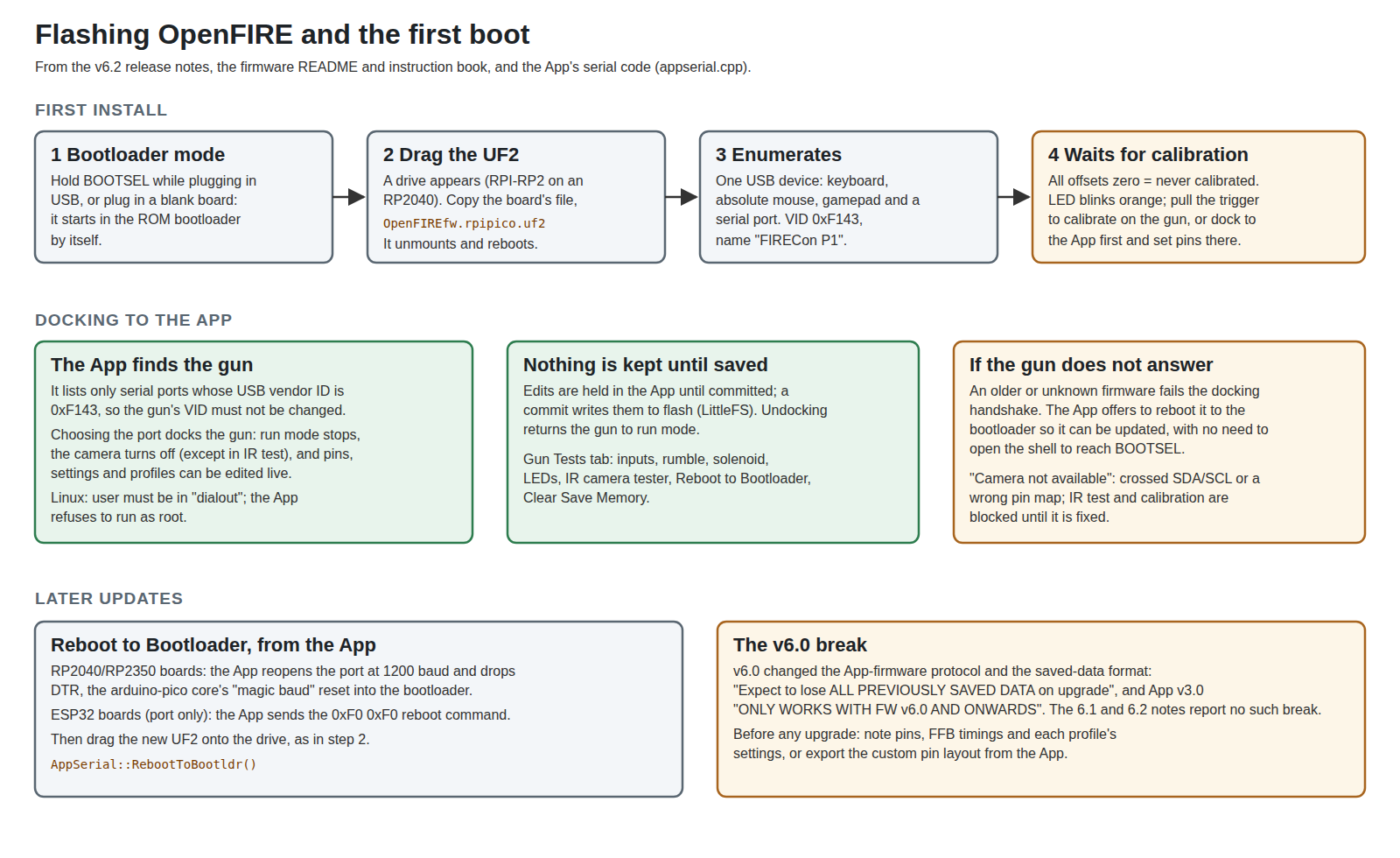
Michael’s brief puts flashing first — “Doing this before soldering means you know the board works” — and the project agrees: every step below can be done with a bare Pico on a USB cable, before a single wire is attached. Volume 3 has the hardware; this volume gets the firmware and the App running and then brings the hardware up one piece at a time.
4.2 Choosing the file
The firmware comes as a set of .uf2 files on the project’s releases page, one per board. For v6.2 (“Long Bridge”, 19 April 2026) they are named OpenFIREfw.<board>.uf2; the board names and what each is for are in Volume 3. For this build:
- Raspberry Pi Pico →
OpenFIREfw.rpipico.uf2 - Raspberry Pi Pico 2 →
OpenFIREfw.rpipico2.uf2 - Pico W or Pico 2 W → the
-noBTfiles. The README lists Bluetooth as a known issue (“TinyUSB/Serial fails to initialize properly when connected via USB”), and the releases carry USB-only builds.
The file name matters only for the default pin map. The release notes say of the two generic images that “you may have luck with either one … but you’ll have to map your controls manually”, and the same is true of flashing the wrong board’s file: the firmware runs, but the pins it expects are wrong until they are reassigned in the App.
Download only from github.com/TeamOpenFIRE/OpenFIRE-Firmware/releases. The README’s warning — “if you have been charged any amount to use OpenFIRE, you have been scammed” — is aimed at resellers of the free firmware, and the safe habit that follows is to take the binary from the project and nowhere else.
4.3 Putting it on the board
The release notes give the procedure in full: “For first-time installation, plug in your microcontroller board while holding the BOOTSEL button to enter bootloader mode (this also happens if your board has no code loaded on it yet) - it will appear as a removable drive named RPI-RP2. Now simply drag’n’drop your chosen .UF2 file to the drive, let it copy, and it will automatically unmount and reboot into OpenFIRE!”
Three details from the Raspberry Pi datasheets and the board itself:
- The bootloader is in the chip’s mask ROM, not in flash, so it cannot be overwritten by a bad image. A board that will not boot can always be brought back by holding BOOTSEL at power-up. The Pico’s datasheet describes the same thing from the other side: the flash “can be (re)programmed either using the Serial Wire Debug port or by the special USB Mass Storage Device mode”.
- The drive name differs by chip. An RP2040 board appears as
RPI-RP2; an RP2350 board appears under its own name. Either way, copying the UF2 onto it is the whole operation. - The SWD pads are the alternative. The Pico’s three debug pads (SWCLK, GND, SWDIO, at the end opposite the USB connector) accept a debug probe, which flashes and debugs without touching BOOTSEL. That is the route Volume 7 uses for development; for installing a release, drag-and-drop is simpler.
4.4 What a freshly flashed gun does
After the copy the board reboots into OpenFIRE and enumerates as a single USB device with four functions: a keyboard, a five-button absolute mouse, a gamepad and a serial port. The manufacturer string is “OpenFIRE”, the vendor ID 0xF143, and the product “FIRECon P1” with product ID 1 until changed. On Windows it appears in Device Manager under Ports (COM & LPT) as well as under the HID classes; on Linux the serial port appears as /dev/ttyACM<n>.
Then the firmware checks whether the current profile has ever been calibrated. On a fresh flash all four calibration offsets are zero, so it does not start tracking: the instruction book’s words are that “the first time it’s plugged in will prompt for the user to pull the trigger button to start initial calibration”. In code the gun blinks its status LED orange and waits in a loop for a trigger press, while still listening to the serial port so the App can dock to it (Volume 2). A bare Pico with nothing attached will sit in that state indefinitely, which is the correct result for a board with no trigger wired.
The instruction book’s advice for that moment: “If your build is using custom pins, or you would like to change any settings at this point, the gun can be docked to the OpenFIRE App and configured prior to starting initial calibration - at least Trigger and Button A should be mapped and confirmed working in the Gun Tests tab.”
4.5 Installing the App
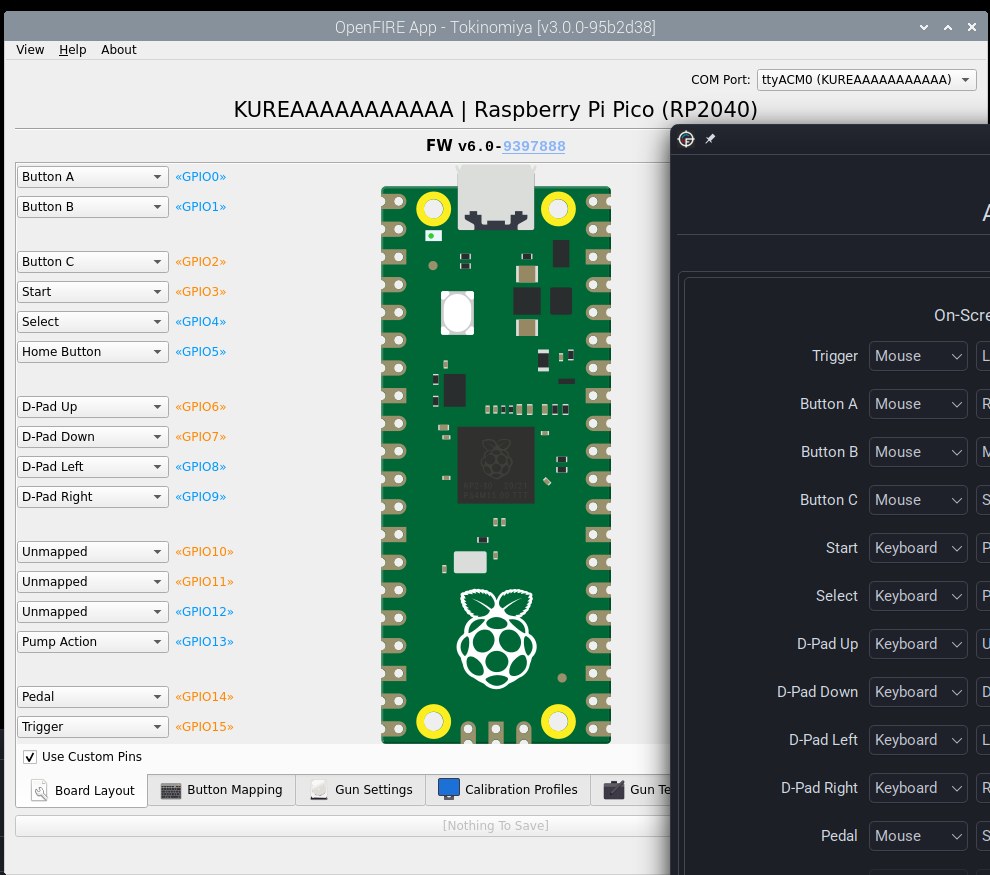
The App is the project’s own configuration and test tool, written in Qt and C++ and licensed GPL v3. v3.0.3 (19 April 2026) is current and is the version that matches firmware v6.2 — its release note says the new temperature-sensor warning “requires a firmware update to FW 6.2, but shouldn’t functionally break older FW 6.x releases.”
- Windows (10 or later, 64-bit): download
OpenFIREapp-win64.zip, extract the folder anywhere, runOpenFIREapp.exe. The README notes that “the RP2040 drivers requires Windows 10 at minimum.” - Linux: the AppImage (
OpenFIRE_App-x86_64.AppImage, or-aarch64for a Raspberry Pi), or theopenfireapppackage from the Arch User Repository. The user must be in thedialoutgroup to open serial ports (usermod -a -G dialout <user>, then log out and in). The App checks this at start-up and says so if it is missing, and it refuses to run as root (“Running as root is not allowed!”). - macOS: the repository has a macOS build workflow, but the releases carry no macOS package.
The App can be opened with no gun attached: the IR Emitter Alignment Assistant and the board previewer (Help → View Compatible Boards) work offline, which makes the App useful before any hardware arrives.
4.6 Docking
With the gun plugged in, the App polls for serial ports and lists only those whose USB vendor ID is 0xF143 (AppSerial::SearchPorts()). That is why the firmware insists the VID must not change: a gun with a different VID is invisible to the App. Selecting the gun’s port docks it. In the docked state the gun stops acting as a light gun, the camera is turned off (except during the App’s IR test), and the App reads the board’s pins, settings and profiles and shows them in five tabs:
Table 1 — With the gun plugged in, the App polls for serial ports and lists only those whose USB vendor ID is 0xF143 (AppSerial::SearchPorts()). That is why the firmware insists the VID must not change: a gun with a different VID is invisible to the App. Selecting the gun's port docks it. In the docked state the gun stops acting as a light gun, the camera is turned off (except during the App's IR test), and the App reads the board's pins, settings and profiles and shows them in five tabs
| Tab | What it holds |
|---|---|
| Board Layout | The function of every GPIO; “Use Custom Pins”; layout presets; export and import of a custom layout |
| Button Mapping | What each input sends on-screen, off-screen and in gamepad mode (Volume 6) |
| Gun Settings | Toggles, force-feedback timings, NeoPixels, OLED, USB identity (Volume 5) |
| Calibration Profiles | The four profiles: offsets, layout, sensitivity, run mode, aspect ratio, colour, name, and the calibrate buttons |
| Gun Tests | Live button and stick states, temperature, rumble/solenoid/LED test buttons, the IR camera tester, Reboot to Bootloader and Clear Save Memory |
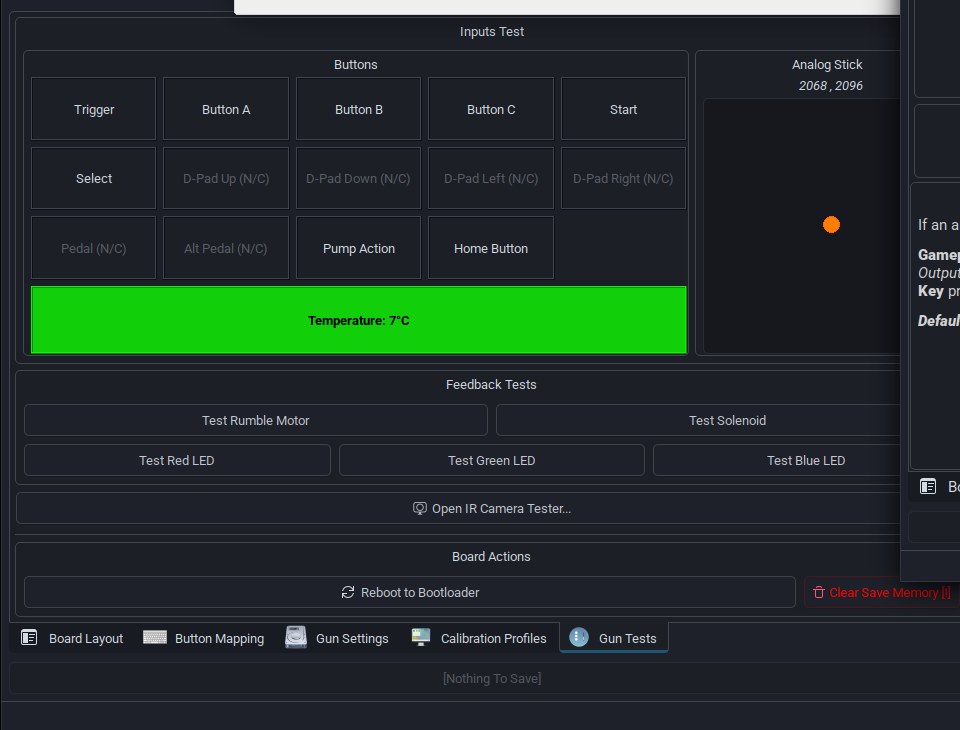
Nothing changed in the App reaches the gun’s flash until it is committed with the button at the bottom of the window (it reads “[Nothing To Save]” when there are no changes). The App then sends the changed blocks and a save command, and the firmware writes them to its LittleFS files. Undocking — choosing no port, or closing the App — returns the gun to run mode.
4.7 A bench bring-up order
The project gives the pieces; the order below assembles them so that each test depends only on things already proven. It assumes a Pico on a breadboard, the parts in Volume 3, and the bench described in this hub’s lab notes (an Analog Discovery Pro ADP3450, a 50 A linear supply and programmable supplies).
- Flash and enumerate. Bare Pico, release UF2, confirm “FIRECon P1” appears and the App docks. Nothing else is connected.
- Trigger and Button A. Wire two switches to GND from GP15 and GP0. In Gun Tests, confirm both register. These are the two the instruction book says must work before calibration.
- Camera. Wire the SEN0158 to 3V3, GND, GP20 (SDA) and GP21 (SCL). Unplug and replug the gun so the firmware initialises it at boot; a crossed pair produces the App’s “Camera not available!” dialog rather than a silent failure. Open the IR camera tester and point the camera at a TV remote’s LED or a Wii sensor bar: the dots should appear and move.
- Emitters. Build or borrow the four emitters, place them in the square layout, open the App’s IR Emitter Alignment Assistant on the screen being used, and check in the IR tester that all four are seen from the shooting position.
- Calibrate (Volume 5) and commit. At this point the gun is a working light gun with no feedback.
- Rumble. Add the transistor or MOSFET stage on GP17; use the Gun Tests rumble button.
- Solenoid, last. Add the MOSFET stage on GP16 with the solenoid on its own supply and a common ground. Use one of the lab’s programmable supplies, current-limited a little above the coil’s V/R, for the first test (the Power Supplies dive’s Stage 1), and the Gun Tests solenoid button rather than the trigger. Then the TMP36 on GP28, mapped in the App, and confirm a sensible temperature reading in Gun Tests before relying on it.
The solenoid goes last because it is the only part that can reset the Pico, drop the USB connection, or cook something if a gate floats; doing it last means every earlier result is already in hand when it misbehaves.
4.8 Updates after the shell is closed
Once a Pico is screwed inside a gun, BOOTSEL is usually out of reach, and the project has designed around that. The release notes: “For any future firmware updates, you can simply ‘dock’ the gun to the OF App, and click the Reboot to Bootloader option in the Gun Tests tab.” In the App’s code (AppSerial::RebootToBootldr()) this is, for RP2040 and RP2350 boards, the arduino-pico core’s “magic baud” reset — the App reopens the serial port at 1200 baud and drops DTR, which the core treats as a request to reboot into the ROM bootloader. (For the ESP32 port it sends a two-byte reboot command instead.) The drive then appears as if BOOTSEL had been held, and the new UF2 is copied as before.
The same mechanism rescues a gun whose firmware is too old to talk to the App. When a board fails the docking handshake, the App explains that “This can usually be resolved by rebooting the microcontroller to its bootloader, and then updating the board to the latest firmware” and offers to do it.
The v6.0 lesson. v6.0 (May 2025) changed both the App–firmware protocol and the stored-settings format. Its release notes are blunt: App v3.0 “ONLY WORKS WITH FW v6.0 AND ONWARDS”, and “Expect to lose ALL PREVIOUSLY SAVED DATA on upgrade! This includes Saved Calibration Profiles, any current Custom Pin Layouts, and Gun Settings.” The v6.1 and v6.2 notes report no such break. Before any upgrade, export the custom pin layout from the Board Layout tab, note the force-feedback timings and each profile’s settings, and expect to recalibrate.
4.9 When it does not work
Table 2 — 4.9 When it does not work
| Symptom | First check | Where the project says so |
|---|---|---|
| No drive appears with BOOTSEL held | Charge-only USB cable; hold BOOTSEL until after the cable is fully seated | Pico datasheet; release notes |
| Gun not listed in the App | VID changed in a custom build; on Linux, dialout membership; another program holding the port | appserial.cpp; App README |
| ”The board … did not respond to the app properly” | Firmware older than 6.0, or a non-OpenFIRE image; accept the offered bootloader reboot and flash v6.2 | appserial.cpp |
| ”Device Error: Camera not available!” | SDA and SCL swapped, wrong pins mapped, or the camera pins assigned to something else | App error text; CameraSet() pin rule (Volume 2) |
| “Peripheral Device Error!” | The OLED’s SDA/SCL crossed or mapped wrongly | App error text |
| OLED stays dark, no error | The firmware cannot detect an SSD1306 failure; try the App’s alternate-address toggle (0x3D instead of 0x3C) | App tooltip |
| Gun blinks orange and ignores the screen | Never calibrated (all offsets zero); pull the trigger or calibrate from the App | Instruction book |
| USB drops out when the solenoid fires | Wiring gauge and grounding; the README asks for at least 24 AWG on the solenoid run | README; Power Supplies |
| Settings lost after an upgrade | Expected across the v6.0 boundary | v6.0 release notes |
4.10 What could not be verified
- The App on macOS: no release package exists, and building it there was not attempted.
- The RP2350’s bootloader drive name on the Pico 2, which is not quoted from a primary source here.
- None of the bring-up steps above has yet been run on this build’s hardware.
Sources
- TeamOpenFIRE,
OpenFIRE-Firmwarerelease notes for v6.0, v6.1 and v6.2, andREADME.mdandOpenFIREmain/README.mdat v6.2, https://github.com/TeamOpenFIRE/OpenFIRE-Firmware/releases — read 2026-10-18. - TeamOpenFIRE,
OpenFIRE-AppREADME, release notes v3.0 to v3.0.3, and source (src/appserial.cpp,src/appmainwindow.cpp,src/appmainwindow.ui), https://github.com/TeamOpenFIRE/OpenFIRE-App — read 2026-10-18. - TeamOpenFIRE,
OpenFIRE-Firmwarev6.2OpenFIREmain/OpenFIREmain.ino(first-boot loop, USB identity). - Raspberry Pi Ltd, Raspberry Pi Pico Datasheet and Raspberry Pi Pico 2 Datasheet (USB mass-storage programming, SWD).
Comments (0)